
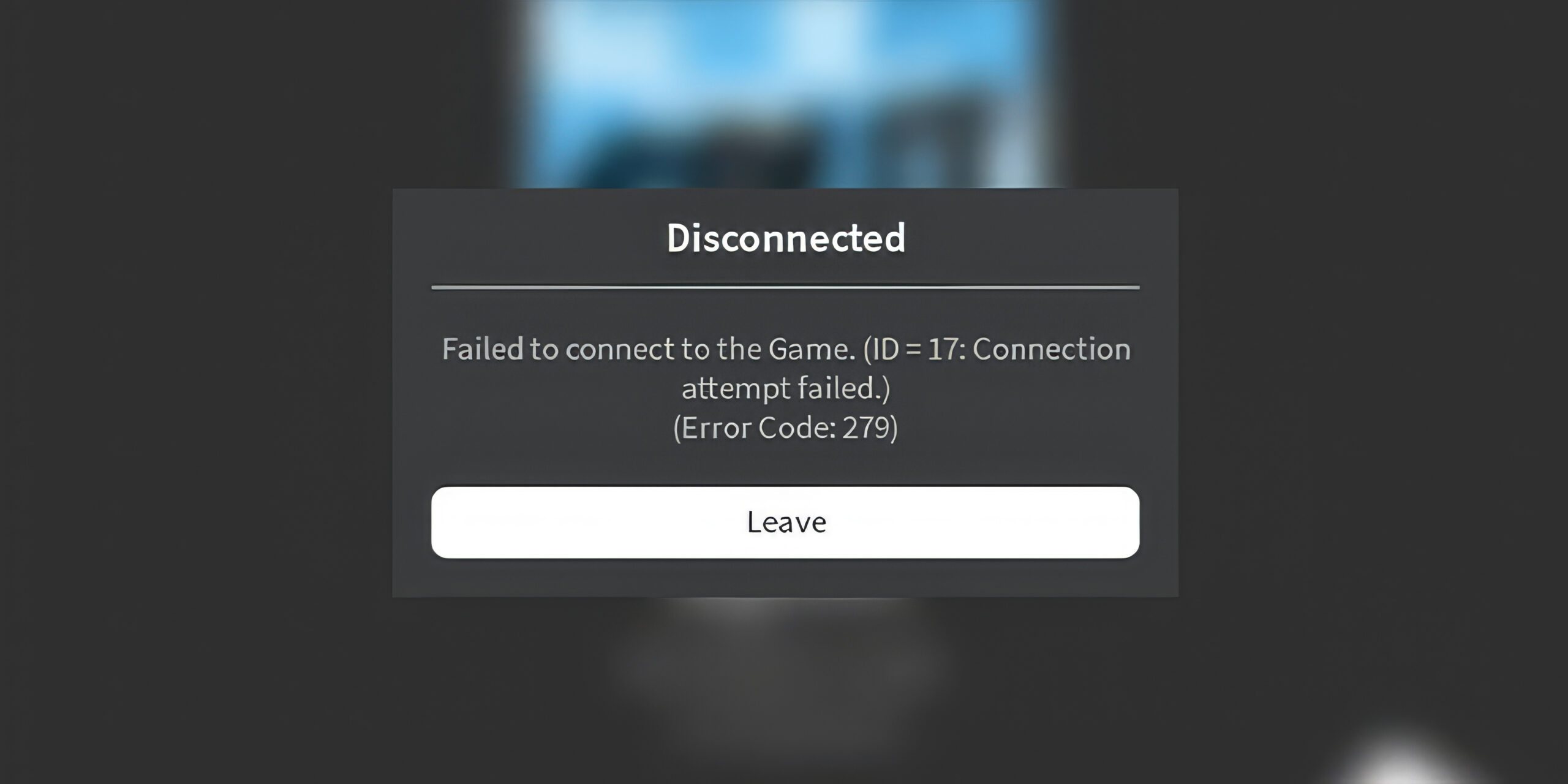
Error code 279 roblox – Complete Fix & Troubleshooting Guide
If you keep seeing error code 279 roblox when trying to join a game, you’re dealing with a connection issue between your device and the Roblox game server. The good news: in most cases, you can fix it yourself with a few structured checks and adjustments.
In this guide you’ll learn what error code 279 roblox really means, why it appears (including the “ID=17” or “No response from server” messages), and step-by-step methods to solve it on PC, mobile, console and browser. You’ll also see practical tips to stop this error from coming back.
What is error code 279 roblox?
Roblox error code 279 is a connection error that shows up when your device fails to establish or maintain a stable link to the game server. On screen it often appears together with messages like “Failed to connect to the Game” or “No response from server,” and sometimes with “ID=17”.
This error can appear on:
• Windows or Mac PC (Roblox app or browser)
• iOS and Android phones/tablets
• Some console setups using a browser or app-based access
The key point: error code 279 roblox almost always indicates a networking problem — either on your side (Wi-Fi, router, firewall, VPN, corrupted app files) or on Roblox’s side (offline or crashed game server).
Why you are seeing Roblox error 279 (main causes)
Behind error code 279 roblox there is almost always at least one of these reasons:
- Temporary outage or shutdown of the specific game server
- Slow, unstable or high-latency internet connection
- Wi-Fi issues (weak signal, interference, overloaded router)
- VPN or proxy interfering with Roblox traffic
- Firewall, antivirus or router blocking Roblox ports
- Corrupted Roblox app files or cached data
- Browser problems (extensions, outdated version, bad cache)
- Device-level network configuration issues (DNS, old drivers, etc.)
Sometimes you may even be trying to join a game server that no longer exists — for example, a session that has already shut down. In those cases, refreshing the experience list and joining a different server can clear the error immediately.
Quick overview of causes and fixes
A short comparison helps you identify where to start:
| Nedeni (Cause) | Belirti (Symptom) | Hızlı Çözüm (Quick Fix) |
|---|---|---|
| Weak / unstable Wi-Fi | High ping, frequent disconnects | Restart router, move closer, use cable |
| VPN / Proxy | Error appears only when VPN is on | Disable VPN/proxy, then test again |
| Firewall / Antivirus | Error right after “Joining server…” | Add Roblox as allowed app, open ports |
| Server shutdown | Friends can’t join same server | Refresh server list, pick a new instance |
| Corrupted Roblox files | Error persists on one device only | Reinstall Roblox, clear app cache/data |
| Browser problems | Error only in one browser | Clear cache, disable extensions, switch browser |
Use this table as a quick checklist before going into more detailed steps.
Step-by-step guide: How to fix error code 279 roblox
A methodical approach works best. Start with the simplest checks and move toward more advanced fixes if the error persists.
Basic network checks
Before changing any settings, make sure the connection itself is healthy. A surprising number of error code 279 roblox cases disappear after a proper network reset.
Fixing error code 279 roblox on Wi-Fi
Restart your router and modem
Turn them off, wait at least 30 seconds, then power them back on. This clears temporary network glitches.
Reboot the device running Roblox
Restart your PC, phone or tablet after the router restart, then try joining a game again.
Move closer to the router or use a cable
If possible, connect with an Ethernet cable. If not, play closer to the router to reduce interference.
Test a different network
Try Roblox using a mobile hotspot, another Wi-Fi network, or a different location. If error code 279 disappears on another network, the issue is with the original router or ISP.
Fixing error code 279 roblox with VPN or proxy
Turn off any VPN app you are using
Many VPNs re-route traffic in ways that break Roblox’s handshake with the server.
Disable browser-level or system-level proxies
• On PC, check your network/proxy settings.
• On mobile, look for proxy configuration under Wi-Fi settings.
Restart Roblox after disabling these tools
Close Roblox completely (and the browser if you use it), then relaunch and try again.
If you must use a VPN
Test different regions and avoid overloaded locations. Some players find that closer VPN regions or gaming-optimized routes reduce errors, but the most reliable option is usually playing without VPN.
Allow Roblox through firewall and antivirus
Security tools often block or limit game traffic, causing error code 279 roblox just when the client tries to join the server. Roblox uses outbound UDP traffic over a wide port range, so aggressive firewalls can easily interfere.
Follow these steps on PC (Windows/Mac):
- Open your firewall settings
• On Windows, open “Firewall & network protection” from system settings.
• On Mac, open “Security & Privacy” and go to the firewall tab. - Add Roblox as an allowed app
Allow inbound and outbound connections for Roblox (and the Roblox launcher, if listed separately). - Check your antivirus or internet security suite
• Look for any blocked Roblox processes.
• Add Roblox to the trusted or exclusion list. - Restart your PC and test again
A reboot ensures the new rules are applied.
If you manage your own router, also check for:
- Any parental control features blocking gaming traffic
- Very strict outbound rules that might block high UDP ports
- Options to enable “gaming mode” or quality-of-service (QoS) for better stability
Browser or app troubleshooting
Whether you play via browser or the standalone Roblox app, damaged cache or files can trigger error code 279 roblox.
For browser players (Chrome, Edge, etc.):
- Clear cache and cookies
In your browser’s settings, clear cached files and cookies, then close and reopen the browser. - Disable extensions temporarily
Ad-blockers, privacy tools and script filters can block necessary Roblox resources. Disable them and try again. - Update your browser
Use the latest version. Older builds can have compatibility issues with Roblox’s web client. - Try another browser
If the error only shows in one browser, switching can quickly reveal whether it’s browser-specific.
For Roblox app players (PC or mobile):
Log out, close the app and reopen it
Update Roblox via your app store or launcher
Clear app cache (on mobile)
If nothing helps, uninstall and reinstall Roblox to replace corrupted files
Device-specific tips (PC, mobile, console)
On PC (Windows/Mac):
• Update network drivers (Wi-Fi/Ethernet)
• Disable “metered connection” if enabled
• Make sure system time and date are correct (bad time settings can break secure connections)
On mobile (iOS/Android):
• Disable battery saver or low-data modes while gaming
• Use Wi-Fi instead of mobile data if your data connection is unstable
• Clear Roblox app data if you constantly see error code 279 roblox on that device only
On console / smart TV style setups:
• Use wired Ethernet whenever possible
• Make sure console network settings use automatic DNS and IP, unless your network requires manual input
How to prevent error code 279 roblox in the future
Once the error is fixed, a few habits will greatly reduce the chance of it returning.
- Keep your router firmware, operating system and browser up to date
- Avoid heavy downloads or streaming on the same network while playing Roblox
- Reboot your router occasionally instead of leaving it on for months
- Limit the number of connected devices on weak Wi-Fi routers
- Check the official Roblox status page if many people are reporting issues at the same time
- Avoid stacking multiple tools together (VPN + proxy + aggressive firewall)
For players who regularly experience high latency or routing issues, specialized gaming network optimizers can sometimes help by finding more stable paths to Roblox servers. Use them as a complement to, not a replacement for, the core fixes above.
- Close Roblox completely and reopen it
- Toggle Airplane Mode on and off to reset the network
- Switch between Wi-Fi and mobile data to see which is more stable
- Clear Roblox app cache (and data if necessary)
- Update Roblox through your app store
- If it still persists, reinstall Roblox and restart your phone
Key tips to remember about error code 279 roblox
error code 279 roblox is frustrating, but in most cases it is fixable with clear, practical steps. Focus first on stabilizing your internet connection, disabling VPN/proxy tools, and making sure firewalls or antivirus software are not blocking Roblox. Then move on to browser/app clean-ups and, if necessary, a full reinstall.
If several players are getting the same error at the same time on the same game, the problem is very likely on the server side and may resolve only when the game developer or Roblox infrastructure recovers. When that happens, the best you can do is be patient, try another experience for a while, and return later.
By following the steps and checklists above, you can usually eliminate error code 279 roblox, get back into your favorite experiences, and keep your connection stable for future play sessions.
FAQ: error code 279 roblox (common questions)
No. error code 279 roblox is a connection error, not a ban or moderation action. It simply means your device failed to establish a stable connection to the Roblox game server, often for network-related reasons.
This often happens when:
• That game’s server instance has crashed or shut down
• The experience uses very heavy assets that load slowly on your connection
• The specific server you’re trying to join is no longer available
Try refreshing the game page and selecting another server or re-joining from the main play button. If friends also cannot join, the issue is likely on the game’s side.
Even if browsing looks normal, Roblox is more sensitive to packet loss, unstable Wi-Fi and blocked ports. Use this mini-checklist:
• Restart router and device
• Switch from Wi-Fi to a wired connection
• Disable VPNs and proxies
• Temporarily turn off firewall/antivirus to test (then re-enable and configure properly)
• Reinstall Roblox or clear the app/browser cache
If error code 279 roblox still appears after these steps on multiple networks and devices, it may be a temporary Roblox-side issue that resolves later.
Yes, in some cases. Using a stable public DNS can improve how quickly your device finds and connects to Roblox servers. Many players report fewer connection errors, including error code 279 roblox, after switching to a well-known DNS provider.
Remember to restart your device after changing DNS settings.
On iOS or Android, try this sequence:
Close Roblox completely and reopen it
Toggle Airplane Mode on and off to reset the network
Switch between Wi-Fi and mobile data to see which is more stable
Clear Roblox app cache (and data if necessary)
Update Roblox through your app store
If it still persists, reinstall Roblox and restart your phone
If error code 279 only shows on one Wi-Fi network, the issue is likely with that router or ISP.
